
If you’ve been wondering how to run Facebook Ads for beginners, this guide is for you. Today, we’ll walk through the fundamentals of setting up Facebook campaigns, drawing from real experiences of top publishers at AdgoHub who have already achieved impressive results.
Why Facebook Ads Are Worth Your Attention
For many new affiliates, Facebook Ads can feel intimidating. It’s a paid advertising platform, and no one wants to waste budget without seeing returns. But trust us, we’ve been in the same shoes. Once you understand the basics, you’ll see why Facebook remains one of the most powerful tools for affiliate marketing.
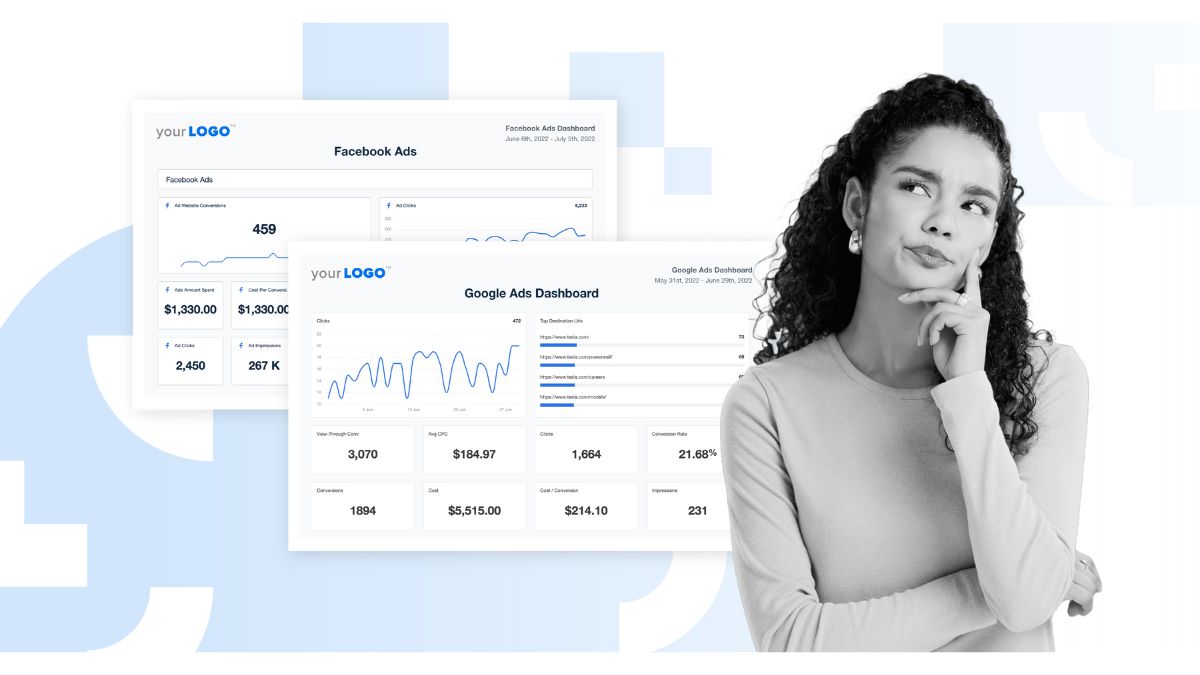
Here’s a quick snapshot of what Facebook Ads brought us in just two months (March 24 – May 24, 2023):
- Revenue generated: $446,587
- And yes, that’s only part of the total results!
With more than 2.98 billion active users worldwide (Statista, April 2023), Facebook provides a massive audience base. When managed correctly, it can become a high-ROI channel for affiliates who want to scale their earnings.
How Facebook Ads Work
At its core, Facebook Ads are designed to put your message in front of the right people. Here’s the breakdown:
- Campaigns and Ad Sets: A single campaign can contain multiple ads, each running independently or simultaneously.
- Targeting: Ads are distributed based on demographics, location, interests, and behavior—helping you connect directly with your ideal audience.
- Impressions: When users see your ad, it counts as an impression. The more relevant your targeting, the higher the chances of quality impressions.
- Engagement (Reach): Once people start interacting—whether by liking, commenting, messaging, or clicking through—Facebook counts it as “Reach.”
- Conversions: The ultimate goal is to turn impressions and engagement into measurable actions such as sales, leads, or sign-ups.
Read more: How to Get 1000 Facebook Followers Quickly: 11 Tested Tactics
Start by Creating a Facebook Page
Before you can launch your first campaign, you’ll need a Facebook Page. This serves as the foundation for running ads and building credibility with your audience. Let’s walk through the essentials:
1. How to Create a Facebook Page
Getting started is simple:
- Go to “Pages” in your Facebook account.
- Click “Create” and fill in the required details, including: Page name, Description, Business category, Website or other contact details
These details shape your brand identity and help users understand who you are at first glance.
2. Choosing the Right Page Name
Your Page name is critical—it represents your brand and must comply with Facebook’s guidelines. Here’s what not to include:
- Abusive language or phrases that infringe on others’ rights
- The word “official” (unless you’re an authorized representative of a brand or public figure)
- Random capitalization (e.g., tHe bEsT CaFE) or using ALL CAPS (except acronyms)
- Symbols or unnecessary punctuation (e.g., “The Best Café ®”)
- Taglines or slogans in the Page name (those belong in your About section)
- Any variation of the word “Facebook”
Pro tip: Keep your Page name clean, professional, and instantly recognizable.
3. Understanding Facebook Page Roles
If you’re managing the Page solo, you’ll have full control. But if you’re collaborating with a team—whether freelancers, partners, or an agency—it’s important to assign the right Page roles:
- Admin: Full control, including assigning roles and changing settings
- Editor: Can publish content and manage posts but not roles or settings
- Moderator: Responds to comments and messages as the Page
- Advertiser: Limited to creating ads and viewing performance insights
- Analyst: Can only access Page insights and activity history
Having a clear role structure ensures smooth teamwork and avoids unnecessary confusion.
Set Up Your Facebook Ads Manager
Once your Page is ready, the next step in learning how to run Facebook Ads for beginners is setting up Meta Business Manager – the hub for managing all your ad accounts, campaigns, and assets.
1. Create a Business Manager Account
Here’s how to set up your Business Manager:
- Go to business.facebook.com/overview
- Click “Create Account”
- Enter your business name, your own name, and work email → click Next
- Add your business details → click Submit
This centralized account will keep your campaigns, billing, and permissions organized.
2. Add Ad Accounts to Business Manager
Once your Business Manager is active, you’ll need to connect or create ad accounts:
- Go to Business Settings
- From the left-hand menu, select Accounts → Ad Accounts
- Click the blue “Add” button and choose one of three options:
- Add an existing ad account
- Request access to an ad account
- Create a new ad account
- If adding or requesting access, enter the Ad Account ID (you receive one by default when you create your personal account—check it in Meta Ads Manager)
- Assign people with different access levels depending on their roles
Create a Meta Pixel in Business Manager
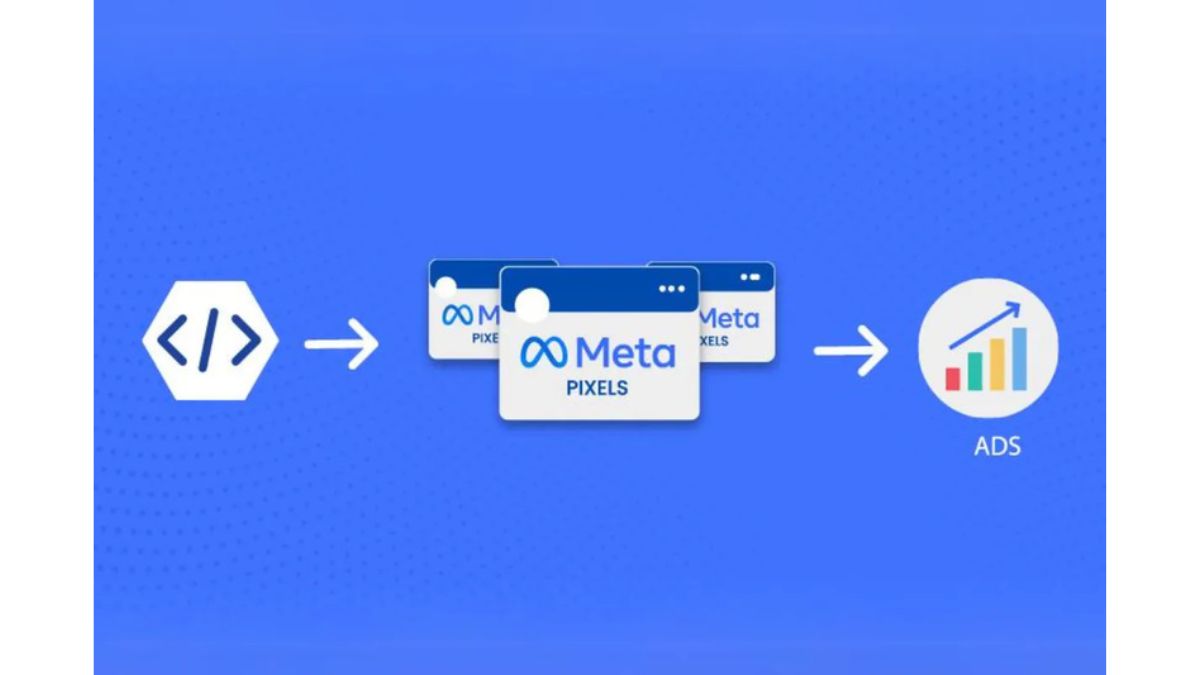
To get meaningful data from your ads, you’ll need to install a Meta Pixel. This small snippet of code tracks user behavior on your website—such as clicks, sign-ups, and purchases—so you can measure conversions, build custom audiences, and optimize campaigns.
Without a Pixel, Facebook can’t provide accurate reporting, making it nearly impossible to know if your ads are really working.
How to Set Up a Meta Pixel
- Log into Business Manager and go to Business Settings
- Choose your business account
- Navigate to Data Sources → Pixels
- Click Add (top right corner)
- Enter a name for your Pixel (make it clear and relevant to your business)
- (Optional) Add your website URL
- Click Continue
- To install it immediately, select “Set up the Pixel Now.” If you prefer to stay inside Business Manager, choose “Continue Managing My Business.”
Once the Pixel is live on your site, your ad account is fully equipped to start tracking conversions. Now, let’s create your very first Facebook Ads campaign.
Create Your First Facebook Ads Campaign
Running your first ad may feel overwhelming, but when broken down step by step, it becomes straightforward. Here’s the process:
Step 1: Define Your Objective
Ask yourself: What do I want this ad to achieve? Facebook Ads Manager offers 11 objectives designed to match your business goals:
- Brand awareness
- Reach
- Traffic
- Engagement
- App installs
- Video views
- Lead generation
- Messages (conversations)
- Conversions
- Catalog sales
- Store traffic
Choose one that best aligns with your campaign’s purpose. For example, if you’re building an email list, select Lead generation. If you’re aiming for direct purchases, go with Conversions.
Step 2: Set Your Budget and Schedule
You control how much to spend by selecting either a daily budget or a lifetime budget.
- Daily budget: Facebook spends roughly the same amount every day
- Lifetime budget: Facebook distributes your spend across the campaign duration
You can also schedule start and end dates—or run ads continuously until you decide to stop
Step 3: Define Your Audience
The power of Facebook Ads lies in its targeting options. By reaching the right people, you’ll save money and improve conversion rates.
Options include:
- Custom audiences: Built from your email list, website visitors (via Pixel), or Page followers
- Demographics: Age, gender, language, and location
- Interests & behaviors: For example, people interested in “life insurance” and “cars” but excluding “trucks”
The more precise your audience, the more effective your ad spend.
Step 4: Choose Your Placements
Decide where your ads will show up. Options include:
- Facebook (Feeds, Stories, Right Column, Marketplace)
- Instagram affiliate marketing
- Messenger
- Tikyok
Or, select Advantage+ Placements and let Meta automatically distribute ads across its ecosystem for the best performance.
Learn more about this topic: TikTok Promotion Not Approved? Here’s How to Fix It
Step 5: Design Your Ad
Now comes the creative part—deciding how your ad will look and what format to use. Options include:
- Newsfeed Ads
- Carousel Ads
- Video Ads
- Dynamic Product Ads (DPA)
- Lead Ads
- Event or Offer Ads
- App Install Ads (mobile or desktop)
- GIF or Canvas Ads
- Inside the Ad Creative section, you’ll set up:
- Primary text
- Headline
- Description
- Call-to-action button
- Media (images or video)
Use the Ad Preview tool to see how your ad will look across different placements. Once satisfied, click Publish and let your campaign go live.
Conclusion
Learning how to run Facebook Ads for beginners may feel like a big challenge at first, but once you break it down into clear steps-setting up a Page, installing your Meta Pixel, defining objectives, and creating your first campaign-it becomes much more manageable.
The key to success isn’t spending the biggest budget; it’s about understanding your audience, testing different creatives, and making data-driven adjustments. With time, you’ll gain the confidence to optimize your campaigns and scale profitably.
Remember, every top affiliate at AdgoHub started exactly where you are now. Take it step by step, stay consistent, and your results will grow.
Learn more about this topic: